Chrome extension · for the Google Apps Script editor
AI inside the Apps Script editor
Ask in the side panel and it writes the code into your project, previews the app, runs your functions and publishes. Bring your own AI key.
Your key stays in your browser.
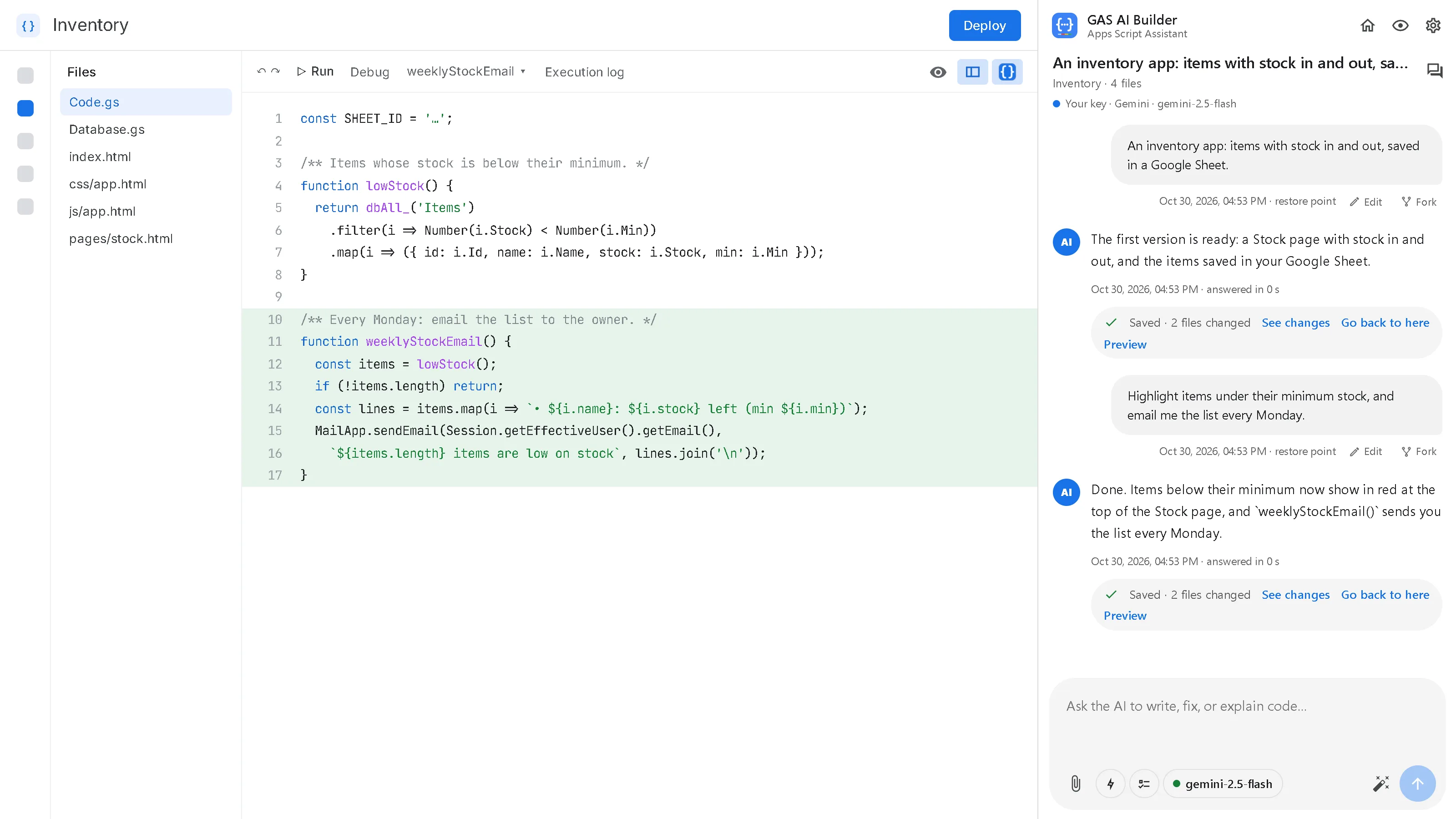
Works where your code already is
No new account to move projects into. Open any Apps Script project you can edit and the panel is beside it.
More than a chat box
It reads your project, writes into it, and checks its own work.
Ask for a change: the answer is written into your files and saved, new lines highlighted.
A whole app becomes a plan. Each stage is built, saved and ticked before the next.
It runs the function it wrote, reads the result, and tells you what happened.
See the app beside the code, with the data from your Sheet, on a desktop or phone width.
Preview, changes since a restore point, run a function, history, publish and setup, in tabs over the code.
Edit or fork a message, chats per project, the view, attachments, Review / Manual / Automatic, plans, the model, and Improve my prompt.
Your AI, usage, license, panel, data in this browser; then Home: what to build, its kind and style, Plan first, projects and chats.
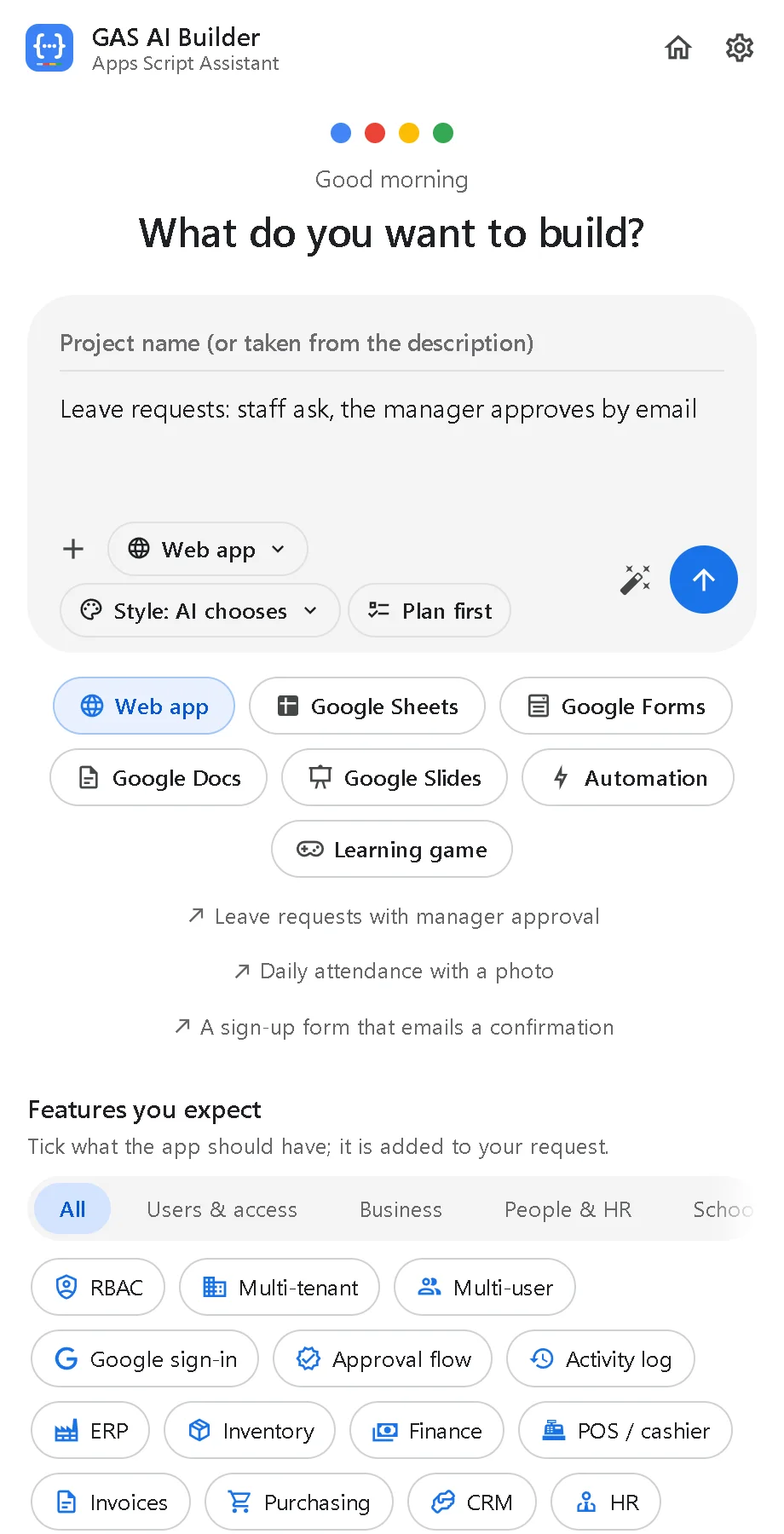
A new app from one sentence
On the panel’s Home, describe the app, pick the kind (web app, Sheets, Forms, Docs, Slides, automation or a learning game) and the features you expect.
- It creates the project for you, names it, and adds a Google Sheet as its database.
- Big apps are planned in stages, each saved and checked before the next.
- Not sure yet? Talk it through first: the AI asks a few questions, then offers the project.
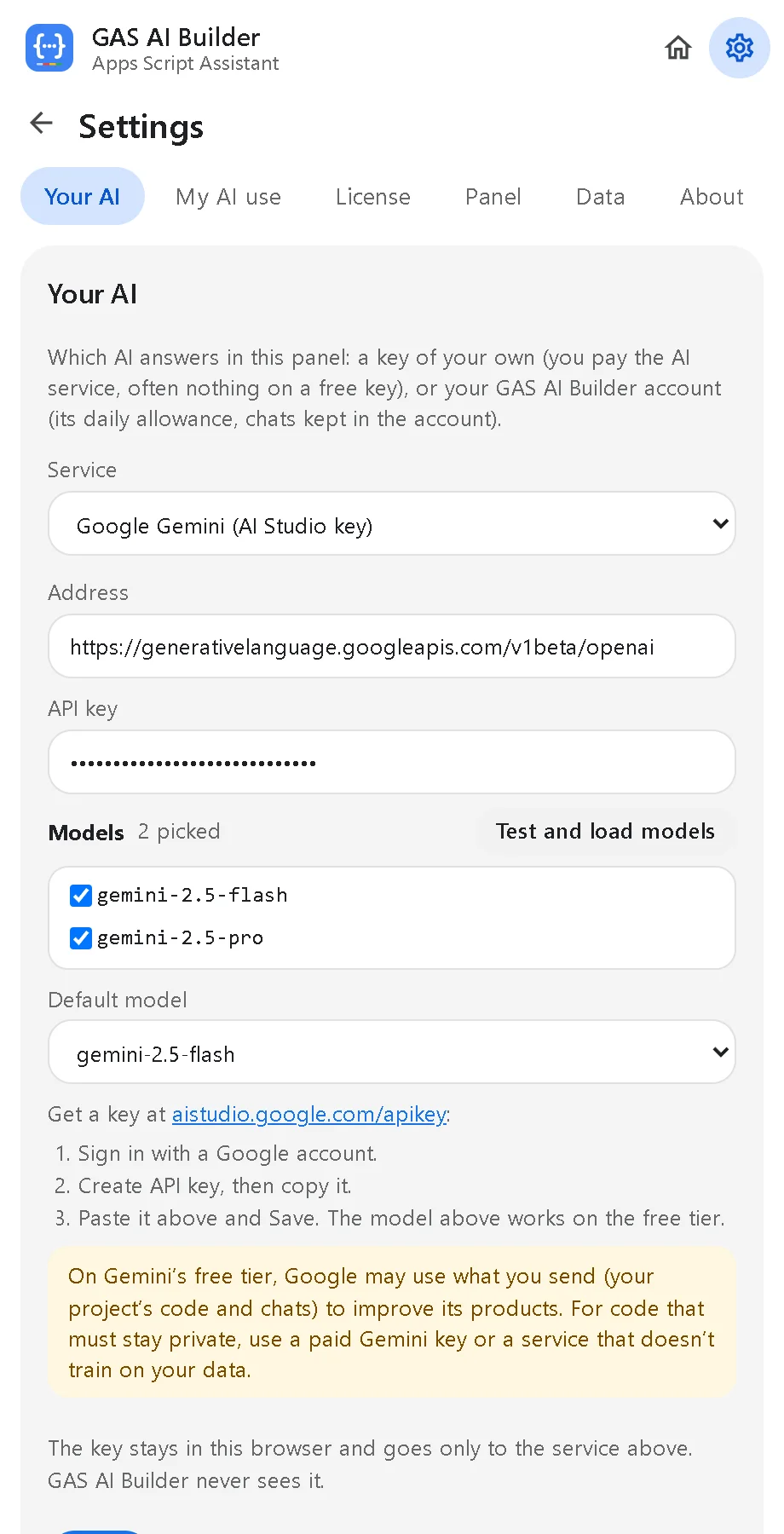
Your key, your data
- The key stays in this browser. It goes only to the AI service you picked, never to GAS AI Builder.
- Your code goes from your browser to that service. It doesn’t pass through our servers.
- Chats stay in the browser unless you choose to keep copies in a GAS AI Builder account, to see them on another computer.
- Pick the models you want from your key’s list, and switch between them in the chat.
Free AI tiers may use what you send to improve their models. For code that must stay private, use a paid key or a service that doesn’t train on your data.
Extension or web app?
Both build Apps Script apps. Pick the one that fits how you work.
Questions
Where do I get an AI key?
Google AI Studio (aistudio.google.com/apikey) gives a Gemini key with a free tier in about a minute. The panel’s Settings show the steps for Gemini, OpenRouter and OpenAI, and test the key before you save it.
Does it change my code without asking?
Only in Automatic mode. In Review it only reads and answers; in Manual you apply each change. Every change keeps a restore point, and functions that send email, delete or share files always wait for your OK.
Does GAS AI Builder see my code?
Not with your own key: the code goes from your browser straight to your AI service. Only if you sign in to keep copies of chats, plans and restore points in an account are they stored there, as described in the extension’s privacy policy.
Can I use it without a key?
Yes, sign in with a GAS AI Builder account in the panel and use its free daily AI allowance instead.
Which projects does it work with?
Any Apps Script project you can edit at script.google.com: web apps, scripts bound to a Sheet, Form, Doc or Slides, and standalone scripts.
Open your next project with an AI beside it
Add the extension, paste a key, and ask for the first change.
Coming soon to the Chrome Web Store