Your first app in 5 minutes #
Five steps from signing in to sharing a link.
- Sign in with your Google account. If Google asks, turn on the Apps Script API (how).
- Describe the app on Home, for example “An inventory app: items with their stock, buttons to record stock in and out, and a warning when an item runs low.” Then send.
- Allow when Google asks for permission, so the project can run with your account.
- Watch it build, then try it in Preview with your real data and ask for changes in the chat.
- Publish when it’s ready and share the link.
Your first app in 5 minutes #
Five steps from signing in to sharing a link.
- Sign in with your Google account. If Google asks, turn on the Apps Script API (how).
- Describe the app on Home, for example “An inventory app: items with their stock, buttons to record stock in and out, and a warning when an item runs low.” Then send.
- Allow when Google asks for permission, so the project can run with your account.
- Watch it build, then try it in Preview with your real data and ask for changes in the chat.
- Publish when it’s ready and share the link.
Start a project #
There are two ways in: Home for a quick start, New project when you want to set things up first.
- Home: type what you want in “What do you want to build?”, pick what it is (Web app, Google Sheets, Forms, Docs, Slides, Automation or Learning game) and send. The project is made and the AI starts building at once. Open Home
- New project: give it a name, choose what you are making, add a mockup picture, a document for the AI (a PRD or notes), links to Google files you already have, or code to import. Open New project
- Not sure yet? Press New chat in the sidebar and talk it through. The AI asks a few questions, then offers a project you can create with one click.
- Start from something ready: Templates has starting points and sample apps, Game library has 16 kinds of learning games. Open Templates
Where it goes: every project is a normal Apps Script project in your Google Drive, in a folder “GAS AI Builder”, with a Google Sheet for its data. You can open it in the Apps Script editor at any time.
Work with the AI #
Ask for what you want in plain words. The AI reads your project, writes the change, saves it and can run functions to check its work.
- Say what to change: “Add a page for suppliers”, “Make the table sortable”, “Send me an email when stock is low”. One request at a time works best.
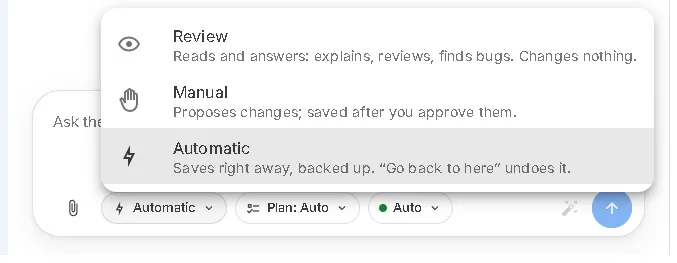
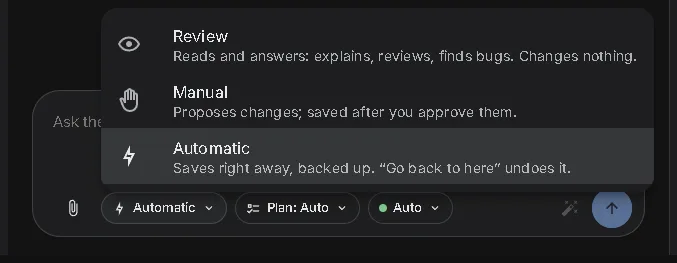
- Choose how it saves with the pill under the message box: Automatic saves each change for you, Manual shows the changes first for you to approve, Review only reads your code and answers.
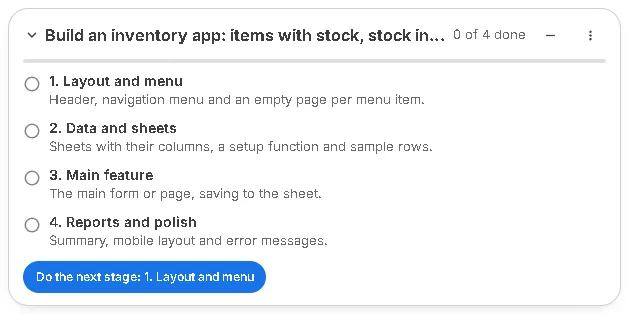
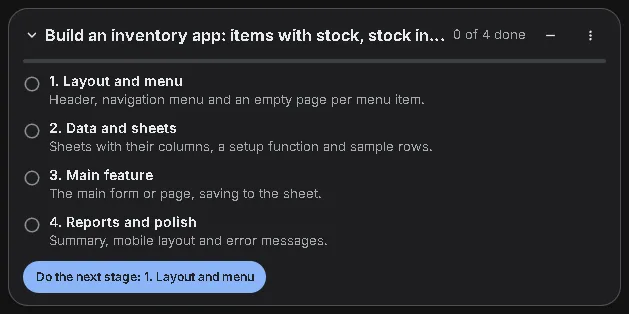
- Big requests are planned: with Plan on Auto the AI splits a whole app into stages. Press Do the next stage to build them one by one.
- Show, don’t only tell: attach a screenshot or mockup, or a file (PDF, Word, Excel, CSV, zip of code). The AI uses them for this message.
- Stop stops the answer. Closing the tab doesn’t: the answer keeps going and is there when you come back.
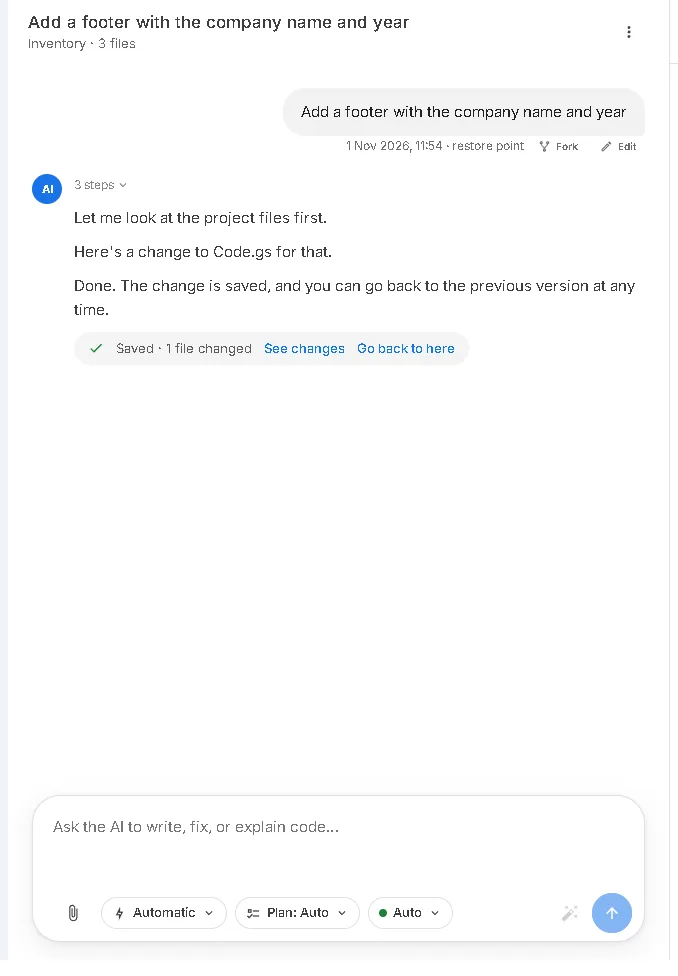
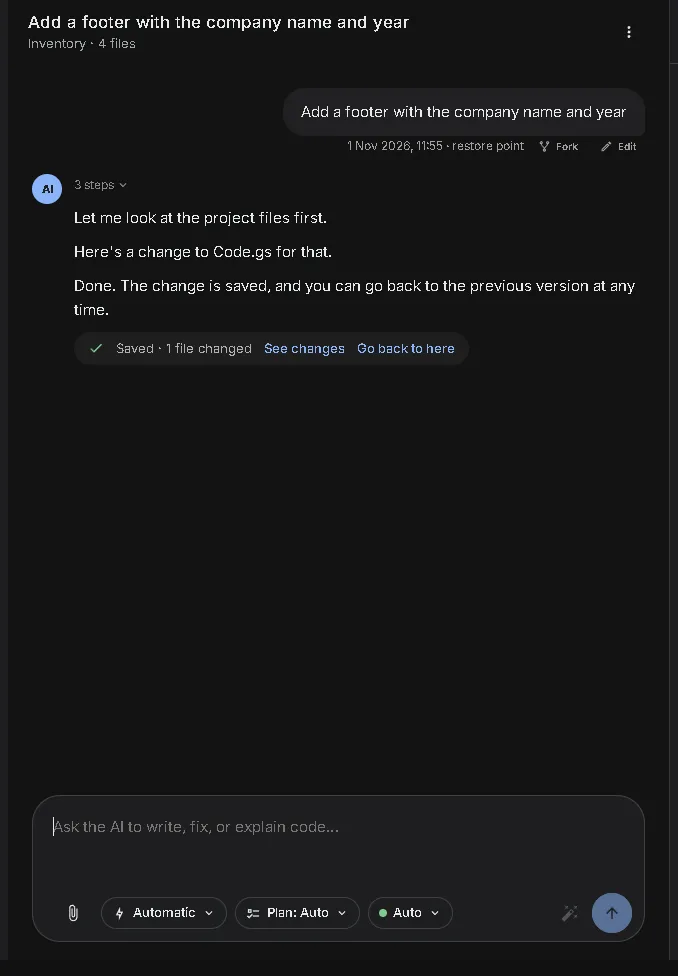
Before it runs something risky (sending email, sharing or deleting files, calling other websites) the AI stops and asks you, in every mode.
Try your app #
You can try every change before anyone else sees it.
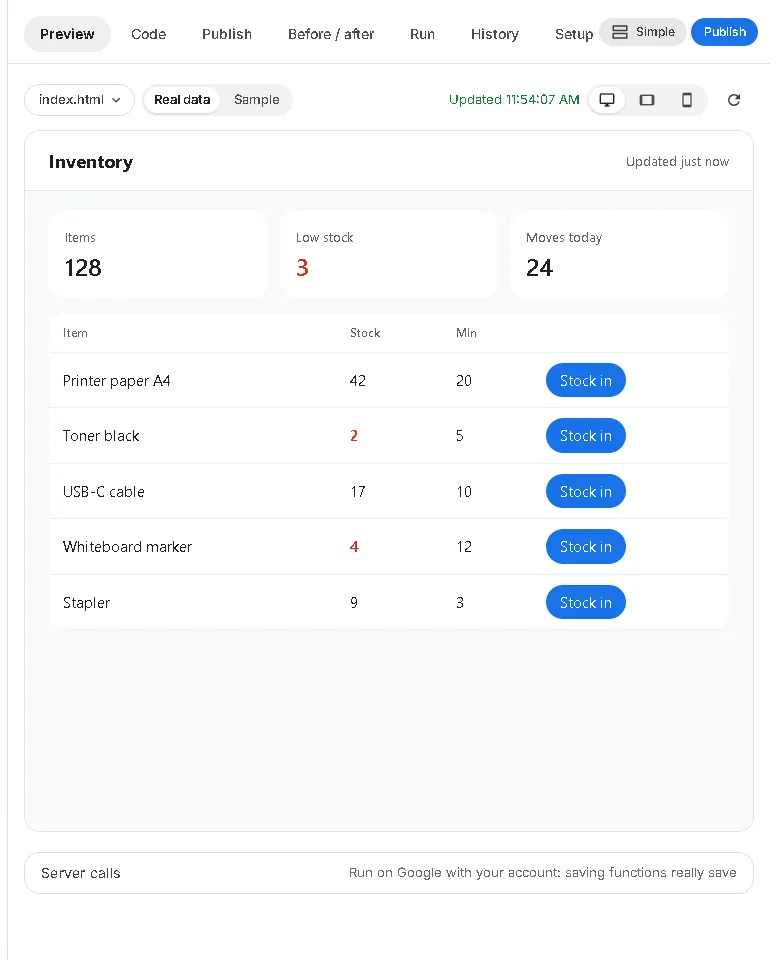
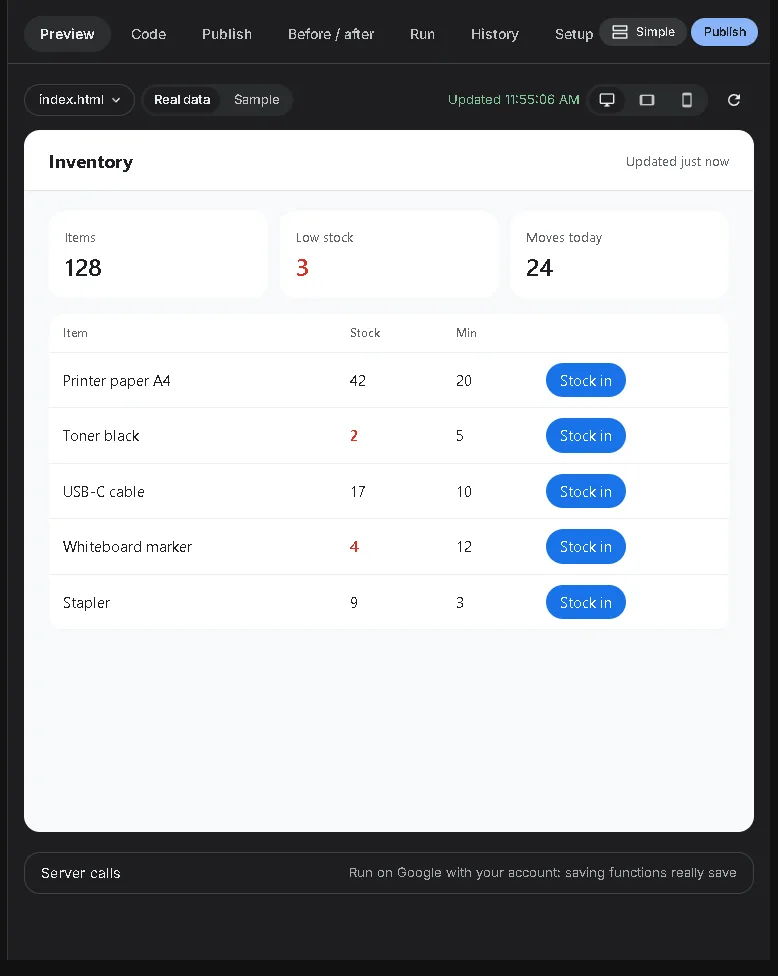
- Preview (the first tab on the right) shows your pages. Real data runs your server code on Google with your Sheet; Sample shows the page with empty data and changes nothing.
- Switch between Desktop, Tablet and Phone sizes to check it works on every screen.
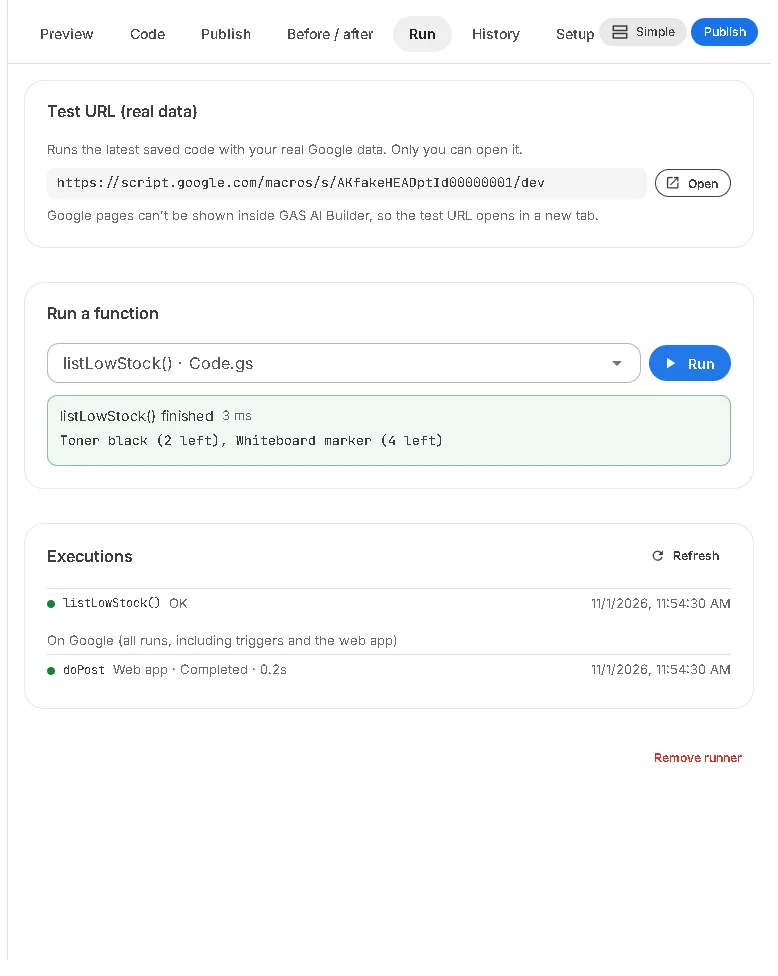
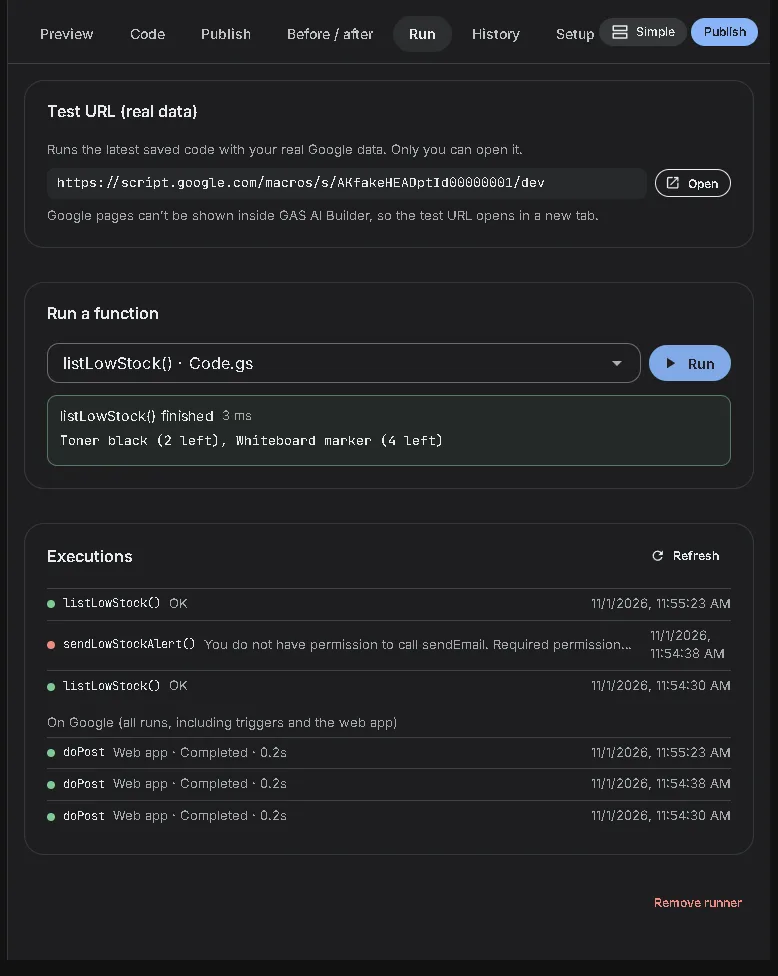
- Run lists your functions. Run one to fill sample data, make a Google Form, or check a result. Its log and any Google files it made appear there.
- Projects without pages (a Form helper, a Sheet menu, a scheduled job) open on Run instead of Preview.
Use your own data #
Apps keep their data in Google Sheets you own.
- A new project gets a Sheet “<name> – Data”. The AI makes one tab per table and keeps the columns up to date.
- Have data already? On New project, add the link of your Sheet, Form, Doc or Slides, or import a CSV or Excel file: it becomes a Google Sheet the app uses.
- After the AI writes data, use Open sheet on the saved line, or the Google files card on Run.
Dates: if a page shows no data but the Sheet has it, ask the AI “check for Date values in what the function returns”. See troubleshooting.
Undo and history #
Nothing is lost by trying something.
- Go back to here under a message puts the code and the chat back to how they were at that message.
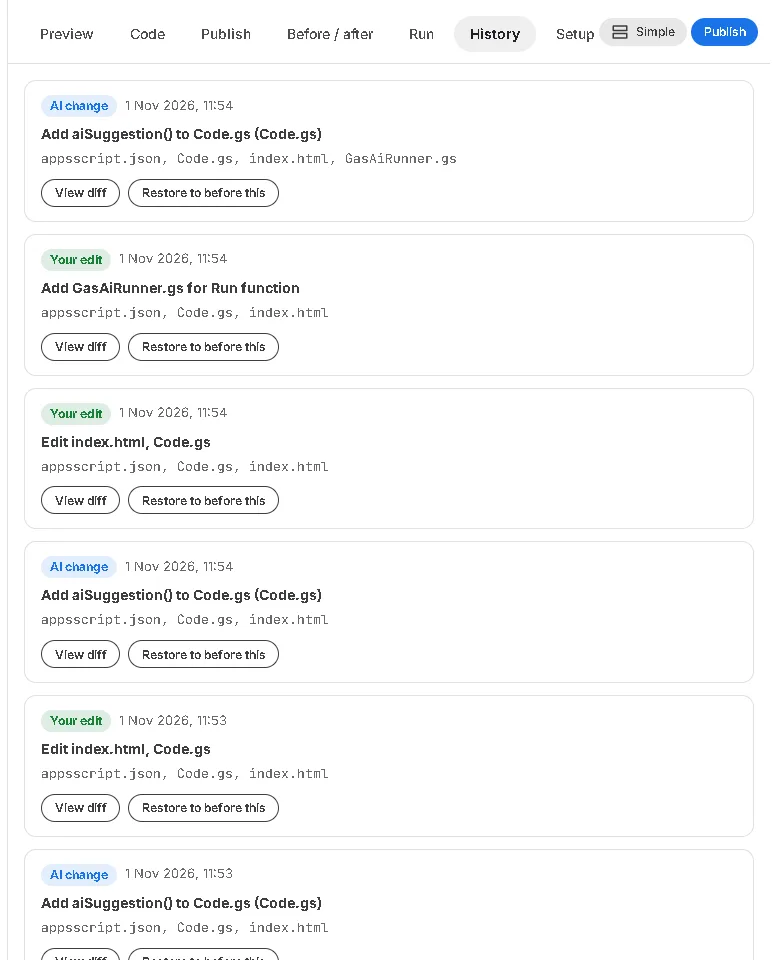
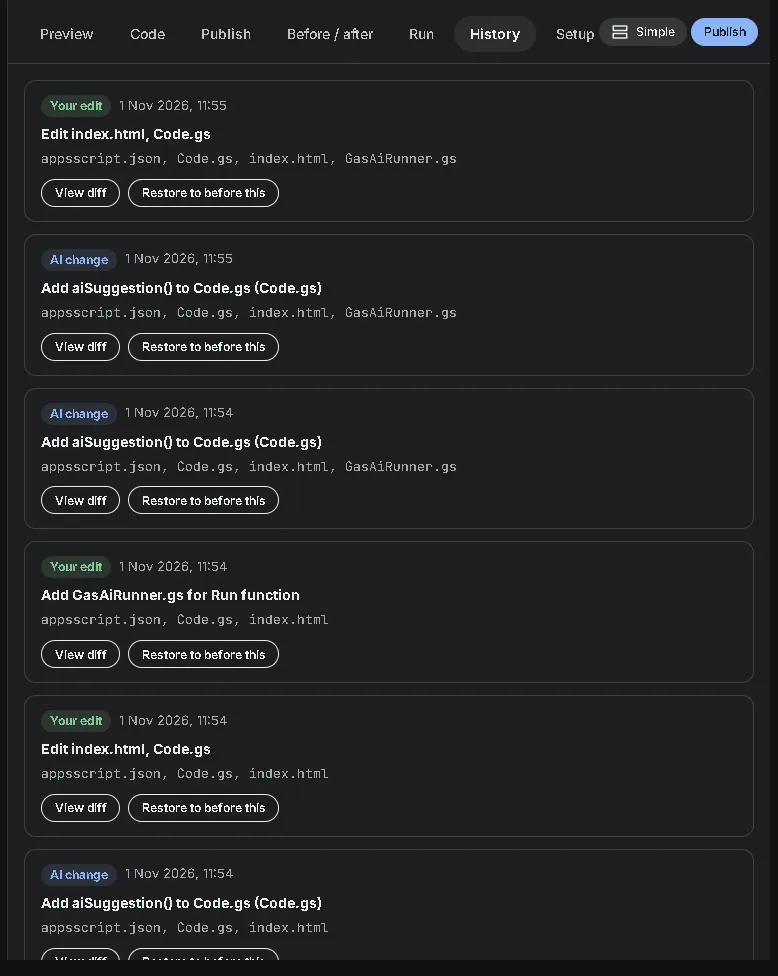
- History lists every save (by you, the AI or the Apps Script editor) with a backup; open one to compare or restore it.
- Before / after shows exactly which lines a change touches.
Publish and share #
Publishing gives your app a link other people can open.
- Press Publish (top right), choose who can open it (only you, your organization, or anyone) and publish.
- After more changes, publish again: the link stays the same, people see the new version.
- Want a nicer address? Turn on a public link like
gasai.app/you/app-namein the Publish tab. - Give the link its own tab icon: under Public link › Tab icon, keep the app’s first letter (pick a colour), use the app’s own favicon, or upload a picture. It also shows when the app is added to a phone’s home screen.
- To let others start from your project, use Share as template in the project’s ⋯ menu: IDs, emails and keys are removed first.
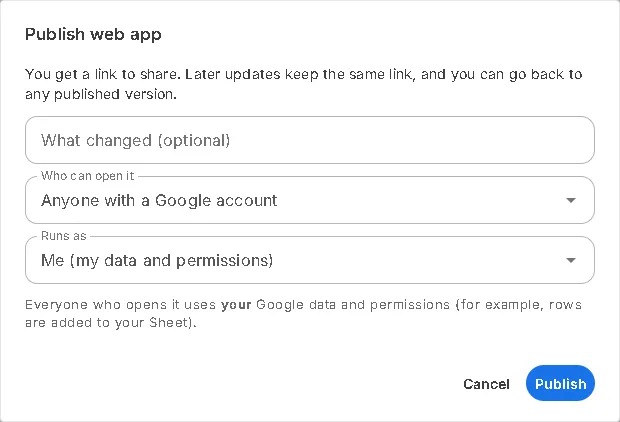
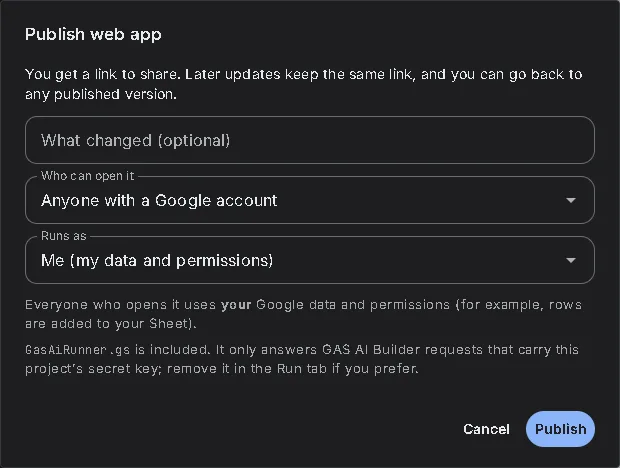
A link that asks people to sign in means access is set to you or your organization. Choose “Anyone” and publish an update.
Google permissions #
GAS AI Builder works through your own Google account, so Google asks you first.
- Apps Script API: the first time, you may see “One more step”. Turn on the switch at script.google.com/home/usersettings; the page continues by itself.
- Allow this project to run: a new project asks once for what it needs (for example Google Sheets). Press Allow in Google, tick every box and continue.
- New permission later: when the code starts using something new (sending email, Calendar…), you see “Allow the new permission”. Allow it, then press “I’ve allowed it”.


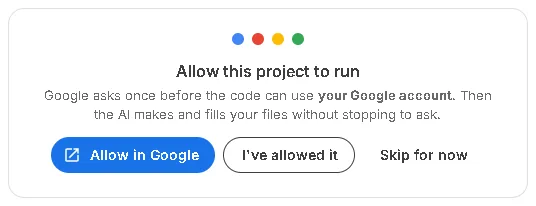
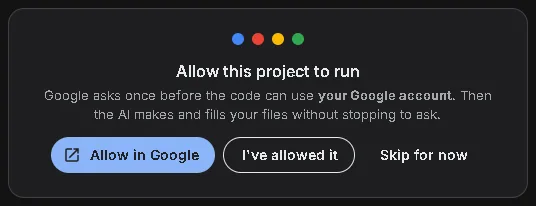


You can remove GAS AI Builder’s access to your Google account at any time at myaccount.google.com/permissions.
Connect an AI app #
Work on your projects from Claude, ChatGPT or Gemini: they read your projects, create new ones, write and run the code and publish, in your own Google account.
Every AI app connects with the same address: https://gasai.app/mcp (also shown in Account › AI apps). You sign in to GAS AI Builder once and choose what the app may do; the AI itself is the app’s own, so it doesn’t use your daily allowance here.


Claude (claude.ai)Add to Claude
- Press Add to Claude (or search for GAS AI Builder in Claude’s Connectors menu), then Connect.
- Sign in to GAS AI Builder when the page opens, read the permissions, choose a mode and press Allow. Claude shows the connector as connected.
- In a chat, open the + / tools menu and turn GAS AI Builder on for that chat, then ask, for example: “List my projects in GAS AI Builder”.
Or add it as a custom connector
- Open claude.ai in your browser, then Settings › Connectors and Add custom connector.
- Paste the address. For sign-in choose Sign in now; for the OAuth client either option works (Use Claude’s published identity or Register automatically).
- Sign in to GAS AI Builder when the page opens, read the permissions, choose a mode and press Allow. Claude shows the connector as connected.
- In a chat, open the + / tools menu and turn GAS AI Builder on for that chat, then ask, for example: “List my projects in GAS AI Builder”.
Connect it from claude.ai in the browser. The Claude desktop app can stay on “You started connecting but didn’t finish” even when the sign-in in the browser worked; the connector is saved in your Claude account, so it shows in the desktop app too once it is connected on the web.
Claude Code
- If Claude Code signs in with the same Claude account, the connector from claude.ai usually shows by itself: type /mcp to check.
- Otherwise add it once:
claude mcp add --transport http --scope user gas-ai-builder https://gasai.app/mcp - Type /mcp, choose gas-ai-builder, then Authenticate, and press Allow on the GAS AI Builder page. Start a new Claude Code session so its tools load.
ChatGPT
- Open Settings › Apps & Connectors (developer mode may need to be on first; which plans can add apps is decided by ChatGPT) and create one with the address.
- Sign in to GAS AI Builder and press Allow.
- In a chat, pick GAS AI Builder from the + menu before you ask.
Gemini
- Open Customize › Connectors › Custom, paste the address and leave the client ID and secret empty.
- Sign in to GAS AI Builder, press Allow, then Connect in Gemini.
What the app may do
On the GAS AI Builder page you see what the app asks for: read projects, change and create projects, run functions, publish and use GitHub. Then choose how its changes are handled:
- Review first (the default): changes wait as a card in the project’s chat until you press Apply.
- Manual: the same card, saved when you press Apply.
- Automatic: changes are saved at once (a backup is kept, so you can go back in History).
Publishing, sharing, restoring an old version, changes to appsscript.json, and running functions that email, share, delete or reach the internet always wait for your OK in Account › AI apps, whatever the mode. You can change the mode or end a connection there any time; changing your password ends every connection.
AI use and limits #
Each account has a daily AI allowance.
- AI today at the bottom of the sidebar shows how much of today’s allowance you used. It starts again every day.
- My AI use (in the profile menu) lists your requests, so you can see what used the most.
- When many people use the AI at once, your message may wait a moment with “Waiting for the AI · you’re #2 in line”. It starts by itself.
Troubleshooting #
What you see, why it happens, and what to do.
The AI app says it can’t connect to GAS AI Builder, or asks you to sign in again
WhyThe connection was ended (you ended it, changed your password, or the app was not allowed for long enough), so its access stopped.
What to doOpen Account › AI apps. If the app is not listed, connect it again from the app with the address shown there.
The AI app says it can’t create projects, or asks you to make one in the Apps Script editor
WhyThe app still has the list of tools, or the permissions, from when it was first connected.
What to doDisconnect GAS AI Builder in the AI app and connect it again, then start a new chat. On the GAS AI Builder page make sure “change and create projects” is listed before you press Allow.
Claude says “You started connecting to GAS AI Builder but didn’t finish”
WhyThis shows in the Claude desktop app when the sign-in finished in the browser but the app didn’t hear back.
What to doConnect it from claude.ai in the browser (Settings › Connectors). Once it shows as connected there, the desktop app uses it too.
“One more step: turn on the Apps Script API”
WhyGoogle needs this switch on in your account before any app can manage Apps Script projects for you.
What to doOpen script.google.com/home/usersettings, turn on “Google Apps Script API”, then come back. The page continues by itself within a few seconds.
“You do not have permission to call …” when something runs
WhyThe code uses a Google service you haven’t allowed yet, or a box was left unticked on Google’s permission screen. It is not a mistake in the code.
What to doPress Allow on the card that appears (or run the function again and tick every box), then “I’ve allowed it”. Don’t ask the AI to change the code for this.
The page shows no data, but the Sheet has it
WhyA Google Sheet turns text like 2026-07-01 into a date. When a function returns a date to the page, Google sends nothing at all, without an error.
What to doAsk the AI: “check for Date values in what the function returns and turn them into text”.
Preview shows an empty page or sample data
WhyPreview is on Sample, or Google is still waiting for you to allow the project.
What to doChoose Real data in the Preview bar. If a card asks you to allow the project, allow it and reload the preview.
The published link asks people to sign in
WhyAccess is set to only you or your organization.
What to doOpen Publish, choose “Anyone”, and publish an update. The link stays the same.
The answer stopped: “reached its time limit”
WhyVery big requests can take longer than one answer allows. What was ready is saved.
What to doPress Continue under the answer. For big apps, keep Plan on Auto so the work is split into stages.
“The AI is busy right now” or “Many people are using the AI”
WhyThe AI services are busy, or many people sent messages at the same moment.
What to doWait a minute and send again. Your message and code are kept.
“You’ve used today’s AI allowance”
WhyYour account’s daily allowance is used up.
What to doIt starts again tomorrow. AI today in the sidebar shows where you are; My AI use shows what used it.
The Apps Script editor still shows the old code
WhyGoogle’s editor doesn’t refresh by itself when the code changes elsewhere.
What to doReload the editor tab. The code saved by the AI is already there.
Ask the AI in your project (switch to Review so it only answers), or email hello@gasai.app.
Closed the tips in your projects? Open your profile menu and choose Show tips again.